-

-

-

-

-
Copier dans le presse-papiers

- Step 1. Open the app
- Step 2. Search available freight
- Step 3. Review load details
- Step 4. Book the load
- Step 5. Assign a driver
- Step 6. Enter equipment information
- Step 7. Monitor load status
- Step 8. Manage freight on the go
Step 1: Open the Navisphere Carrier app
Launch the Navisphere Carrier app on your iPhone or Android device and sign in to your account.
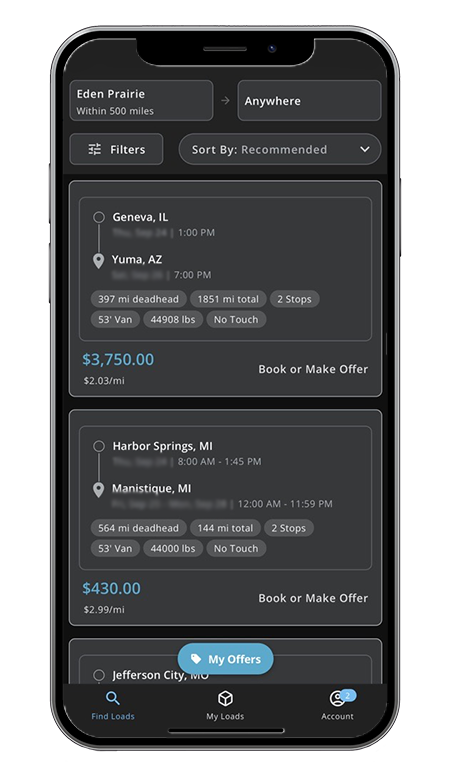
Step 2: Search available freight
Navigate to the “Find loads” section to browse freight opportunities. The app allows you to find loads in your preferred lanes and areas.
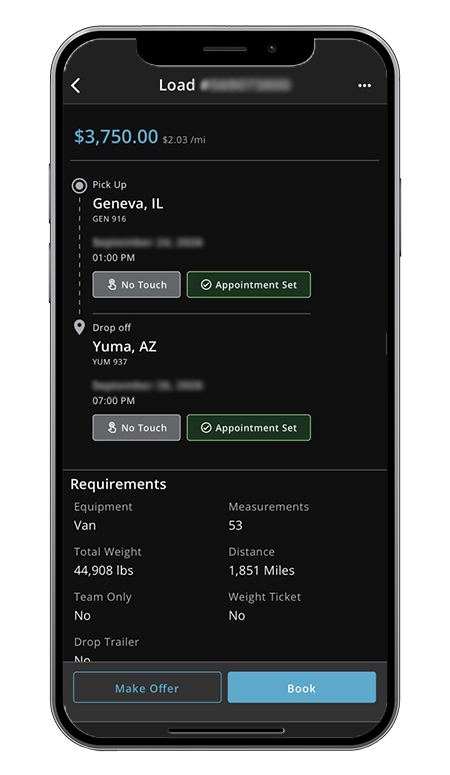
Step 3: Review load details
Select a load to review key information, such as:
- Pickup and delivery locations
- Shipment details
- Route information
- Other load requirements
The goal is to identify loads that fit your network and equipment.
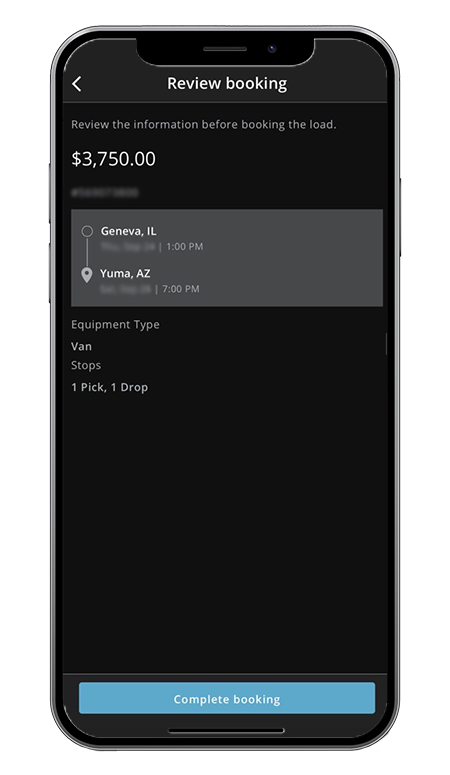
Step 4: Book the load
When you've found a load you want, use the booking option in the app to secure it instantly. The app is designed to let carriers book freight without having to make a phone call.
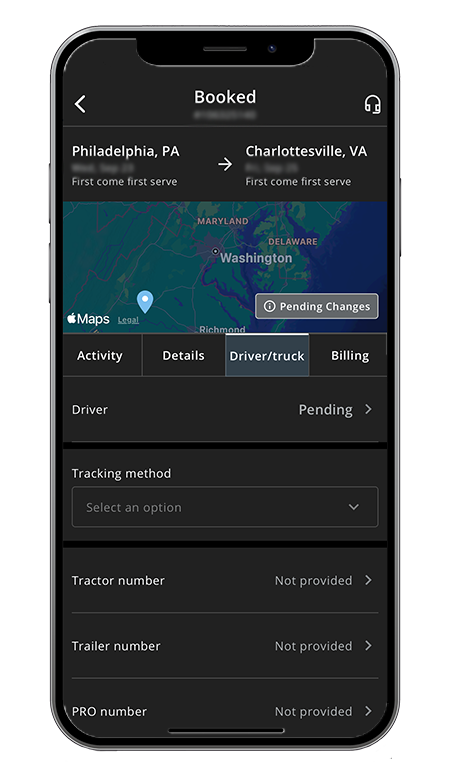
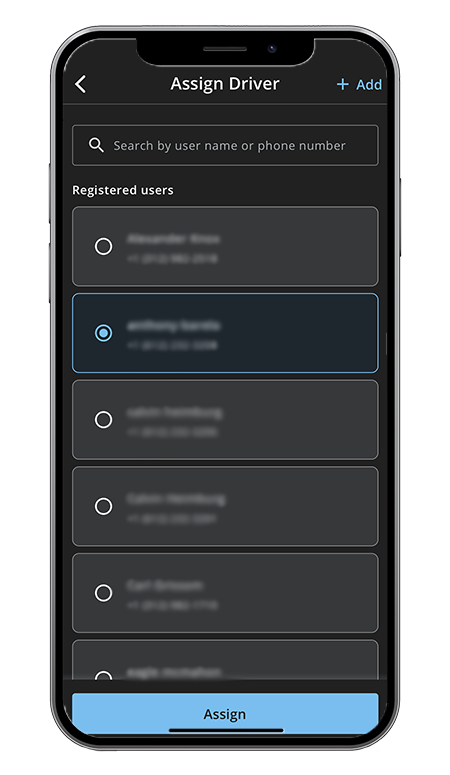
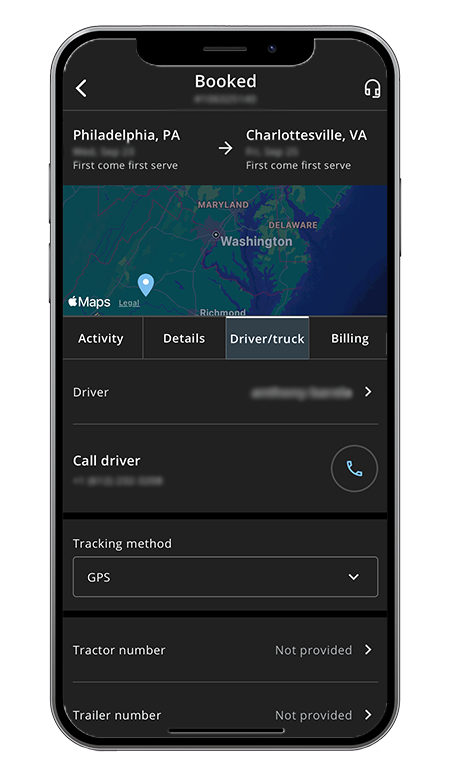
Step 5: Assign a driver
After booking, assign a driver to the load within the app.
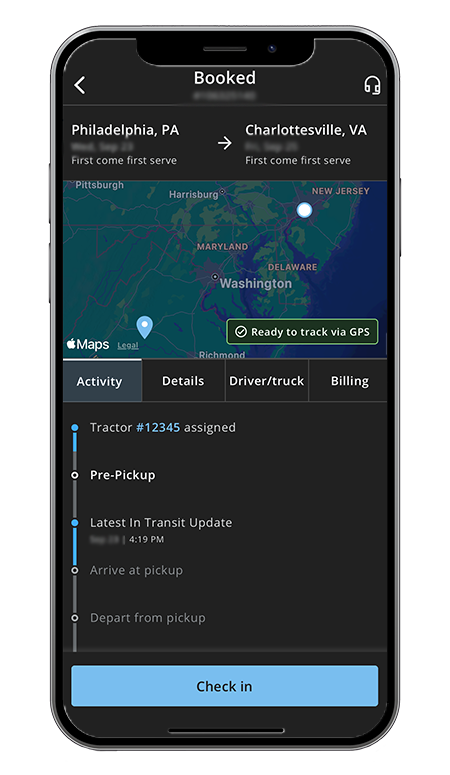
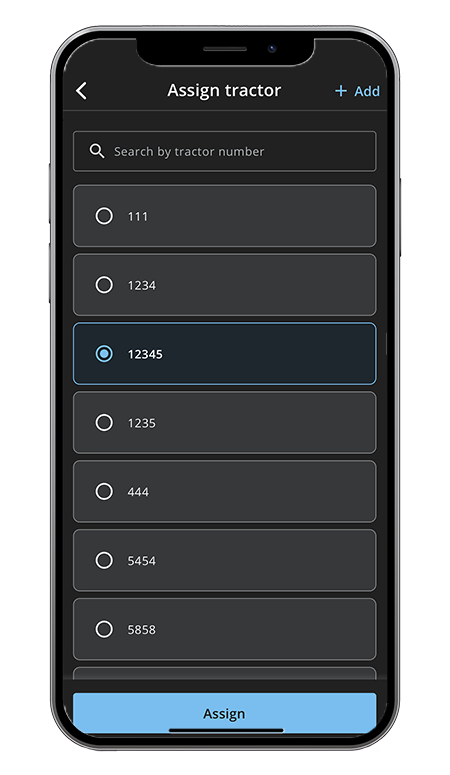
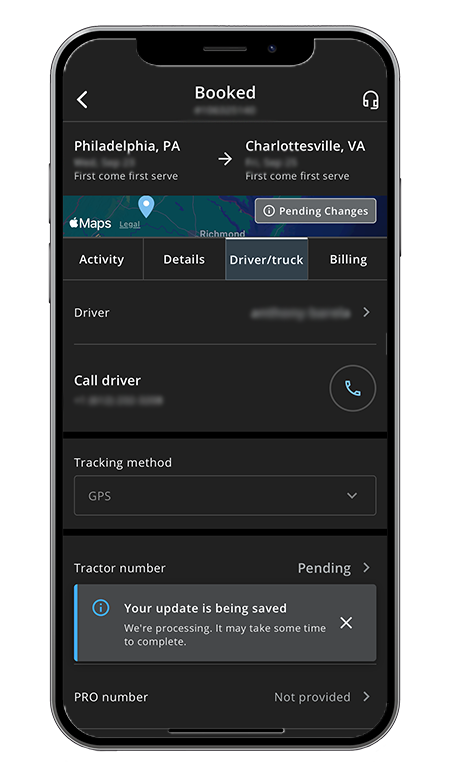
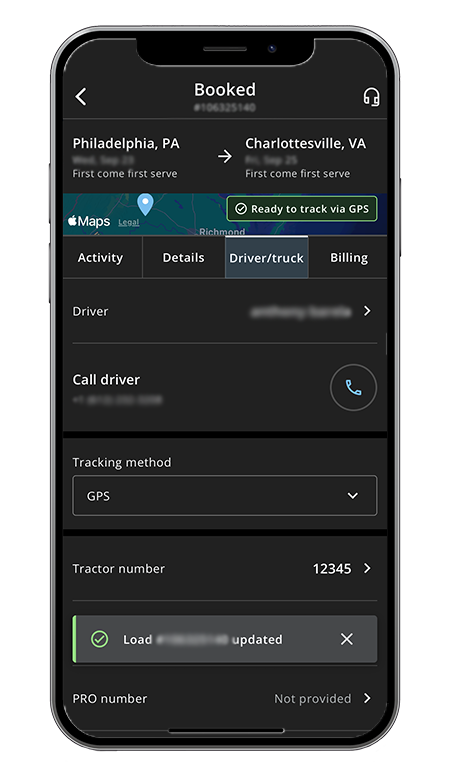
Step 6: Enter equipment information
Add the:
- Tractor number
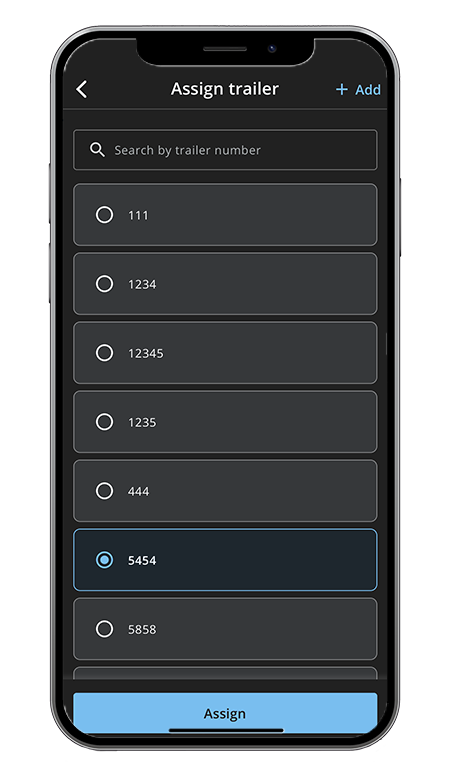
- Trailer number
This links the assigned equipment to the shipment.
Assign tractor:
Assign trailer:
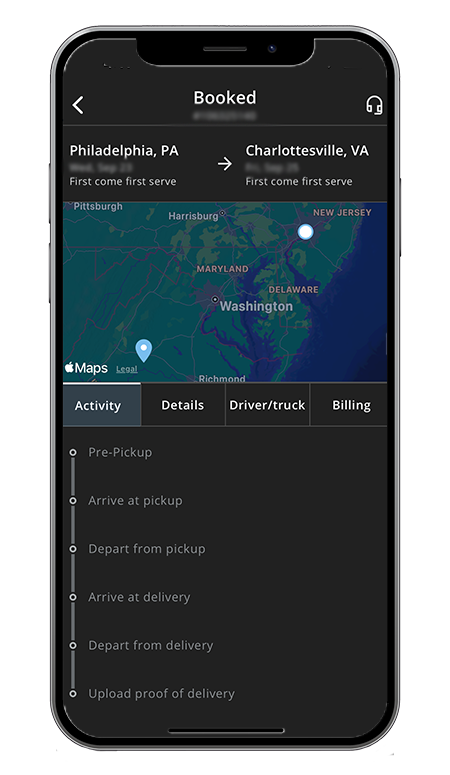
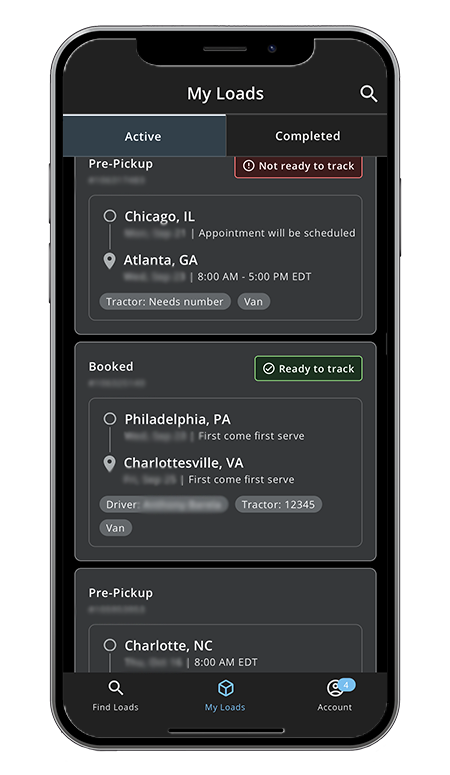
Step 7: Monitor load status
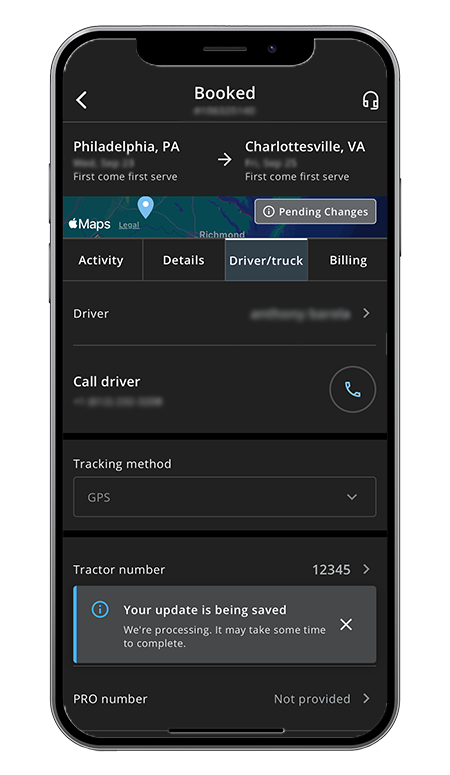
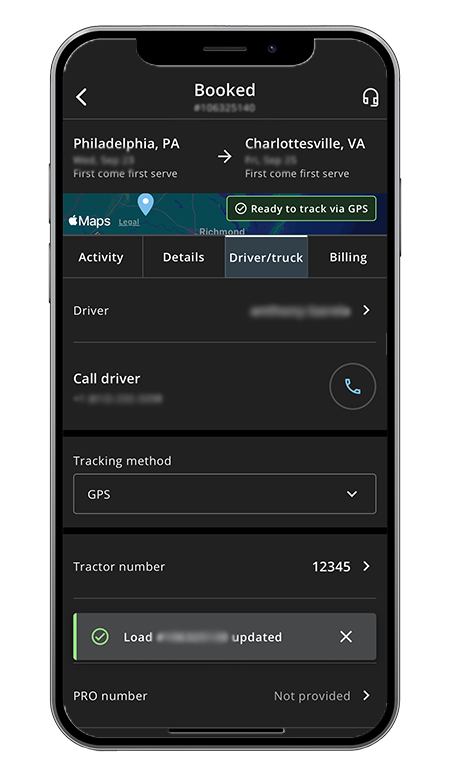
Track the shipment through its lifecycle using the app's status views:
- Booked
- Assigned
- In Transit
This provides visibility into the progress of each load.
Step 8: Manage freight on the go
Continue using the app to view and manage loads directly from your mobile device. The app provides access to available freight and load status updates in one place.
- Step 1. Open the app
- Step 2. Search available freight
- Step 3. Review load details
- Step 4. Book the load
- Step 5. Assign a driver
- Step 6. Enter equipment information
- Step 7. Monitor load status
- Step 8. Manage freight on the go