-

-

-

-

-
复制到剪贴板

- If your phone number is already verified in Navispere
- If your phone number is not verified in Navispere
SMS authentication gives you another way to securely log in to Navisphere® Carrier using a verification code sent to your mobile phone. Follow the steps below based on whether your phone number is already verified.
If your phone number is already verified
Step 1: Select SMS authentication
On the login screen, choose SMS or Email from the dropdown menu.
Navisphere Carrier will remember and default to the last method you used.
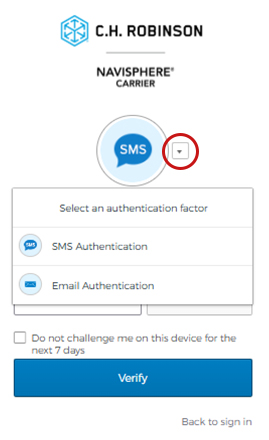
SMS authentication dropdown
Step 2: Verify your login with SMS
- Click Send code
- Enter the SMS code sent to your verified phone number
- Click Verify to log in
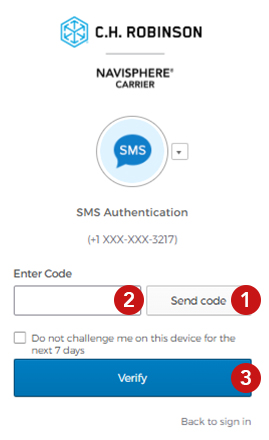
Verify your login with SMS
Step 3: Your phone number is verified
Good news! Your phone number is already verified. SMS multi-factor authentication is ready for use.
Future tip: If you begin updating your phone number but don’t complete verification, Navisphere Carrier will revert to email-only authentication until the new number is verified.
To update your phone number, go to:
User Menu (top right) → Account Settings → Profile Settings

Phone number verification confirmation
If your phone number is not verified
Step 1: Verify your phone number
To enable SMS authentication, start by verifying your phone number in your Profile Settings.
On web, go to:
User Menu (top right) → Account Settings → Profile Settings
On the app, go to:
Account → User Profile.
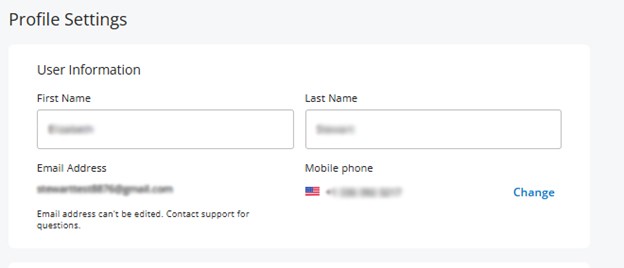
Web
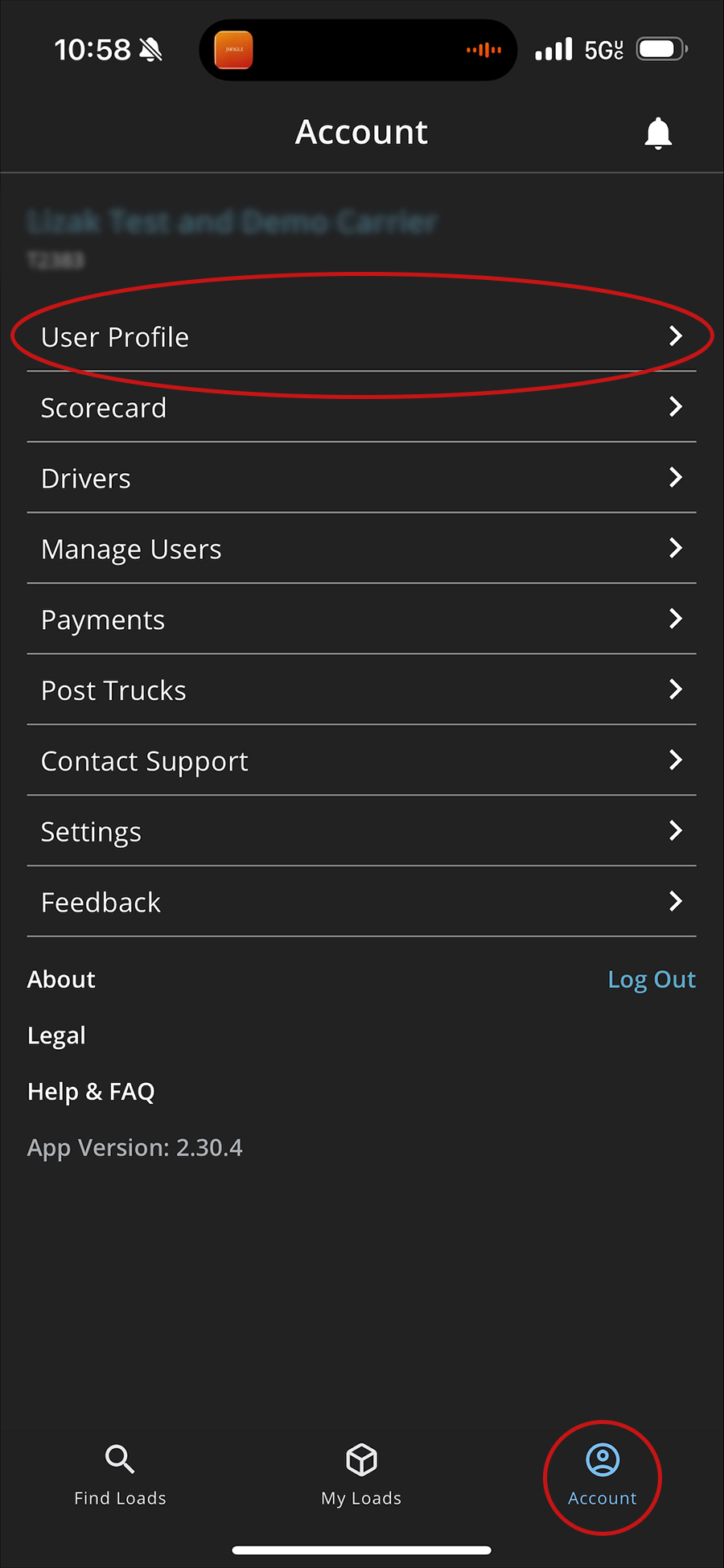
Mobile app
Step 2: Click change or add next to your mobile phone number
Once you’re in Profile Setting, click Change or Add to verify your current number or update, and verify, it to a new one.
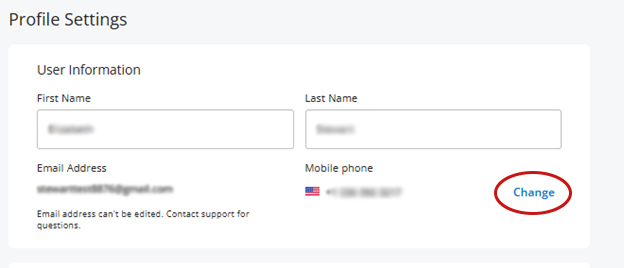
Web
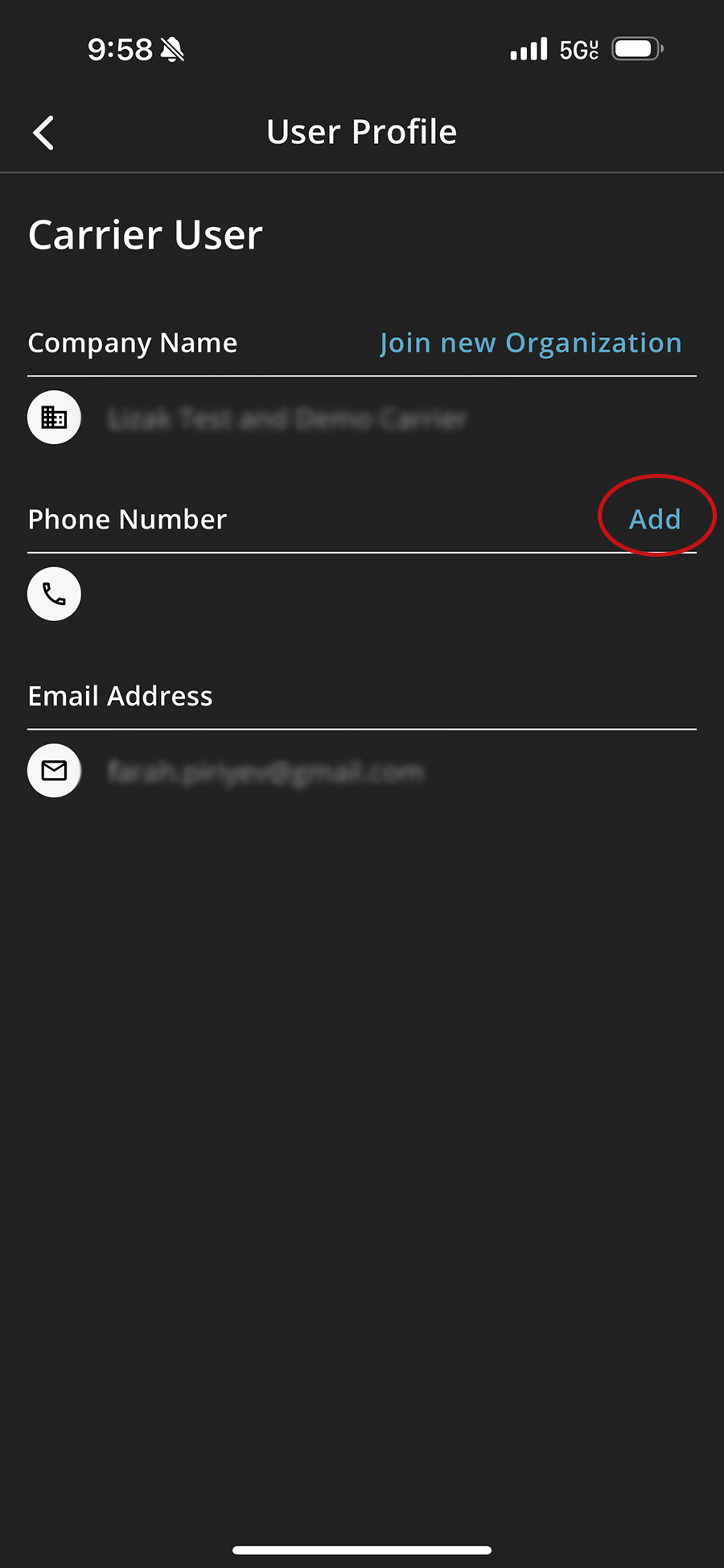
Mobile app
Step 3: Complete the verification steps
Click Verify via SMS to receive a code at the number listed in your settings.
Enter the code and click Verify.
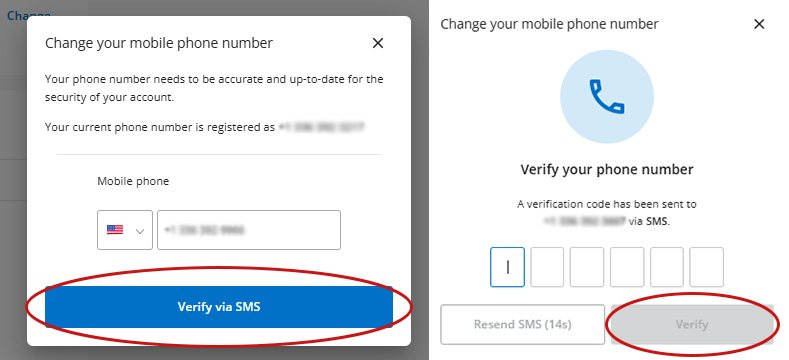
Select Verify via SMS
Step 4: Your phone number is verified
After your code is verified, you’ll receive a confirmation email, and SMS multi-factor authentication will be available immediately.
If a phone number update is started but verification isn’t completed, Navisphere Carrier login will default to email-only authentication until a phone number is successfully verified.
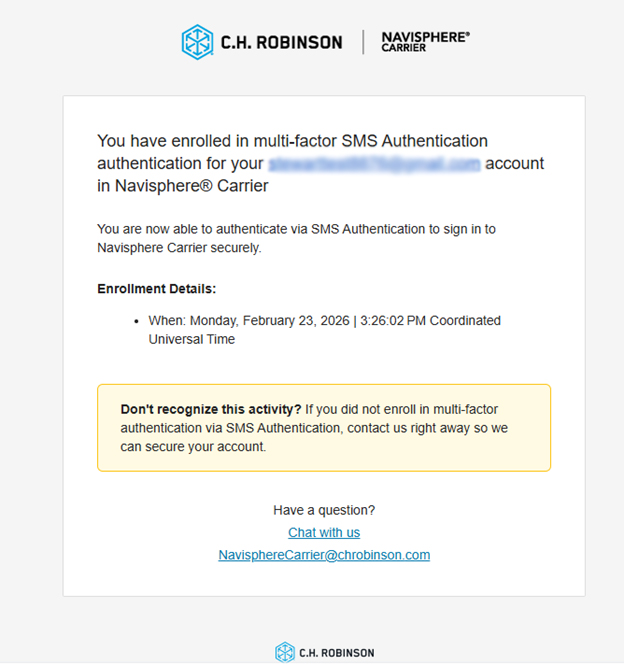
Verification confirmation email
Step 5: When logging in, choose SMS from the authentication dropdown
On the login screen, choose SMS or Email from the dropdown menu.
Navisphere Carrier will remember and default to the last method you used.
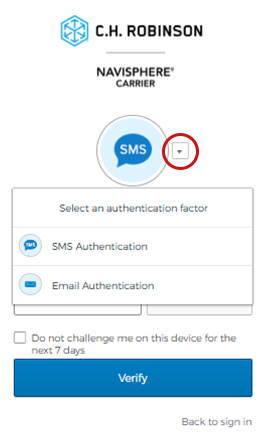
SMS authentication dropdown
Step 6: Verify your login with SMS
- Click Send code
- Enter the code sent to your verified phone number
- Click Verify to log in
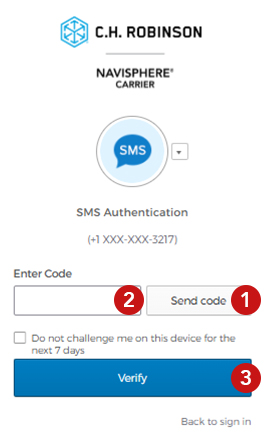
Verify your login with SMS
- If your phone number is already verified in Navispere
- If your phone number is not verified in Navispere


