-

-

-

-

-
Copy to clipboard

- Step 1
- Step 2
- Step 3
- Step 4
A Step-by-Step Guide
Navisphere® Carrier makes it easy for carriers to manage loads and get paid quickly. One of the most effective ways to speed up your payment process is by uploading your documents directly through the platform. Uploading documents in Navisphere Carrier speeds up processing, reduces delays from missing paperwork, and lets you submit from anywhere using your phone or computer. This step-by-step guide will take you through how to upload your documents correctly and efficiently—whether you’re using the web or mobile app.
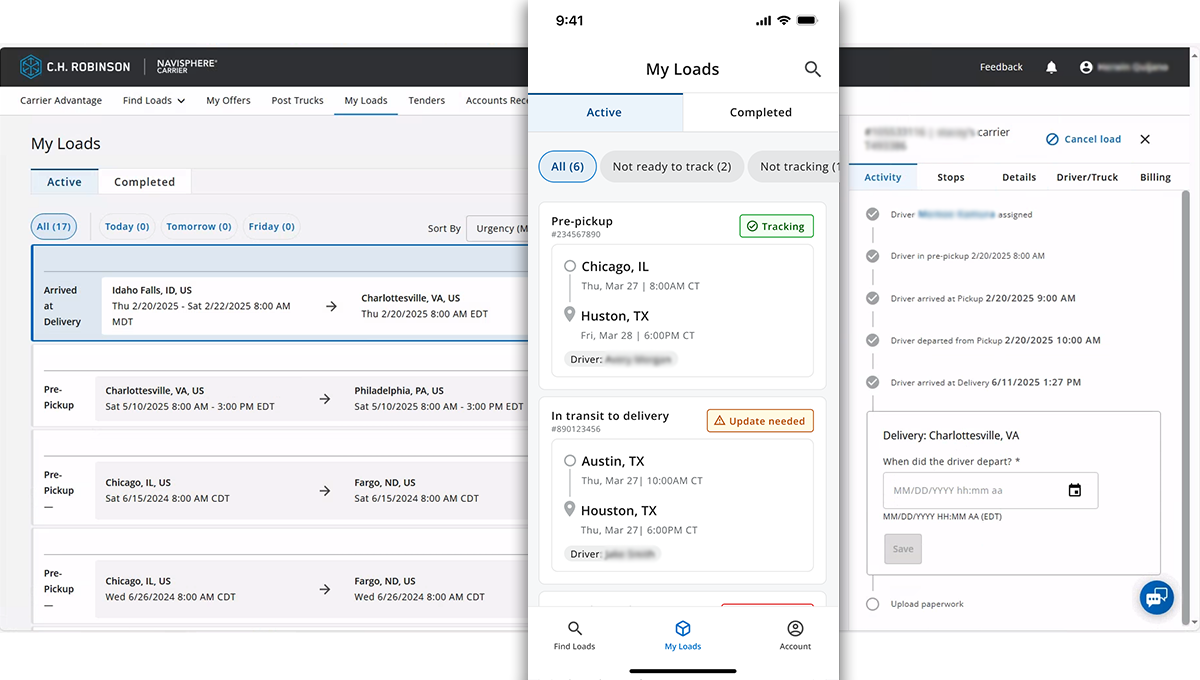
Step 1: Find your load
Log in to Navisphere® Carrier on the web or mobile app, go to My Loads, and find the load you need to upload documents for.
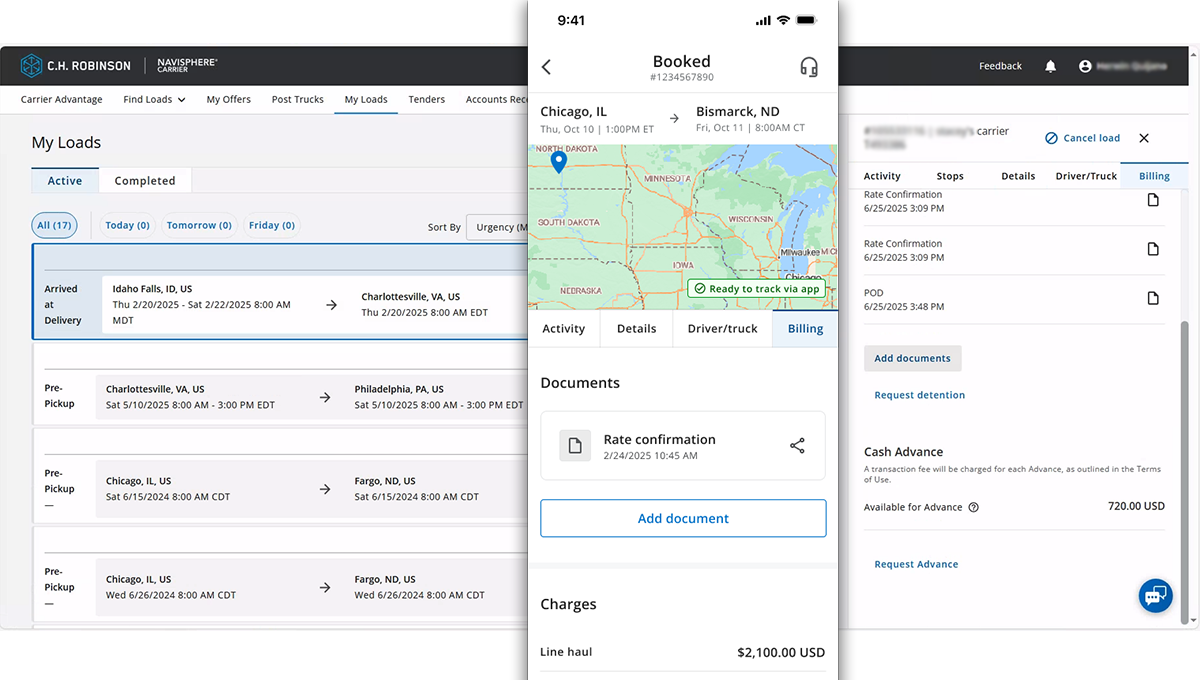
Step 2: Go to document upload
Go to the Billing tab and select Add documents.
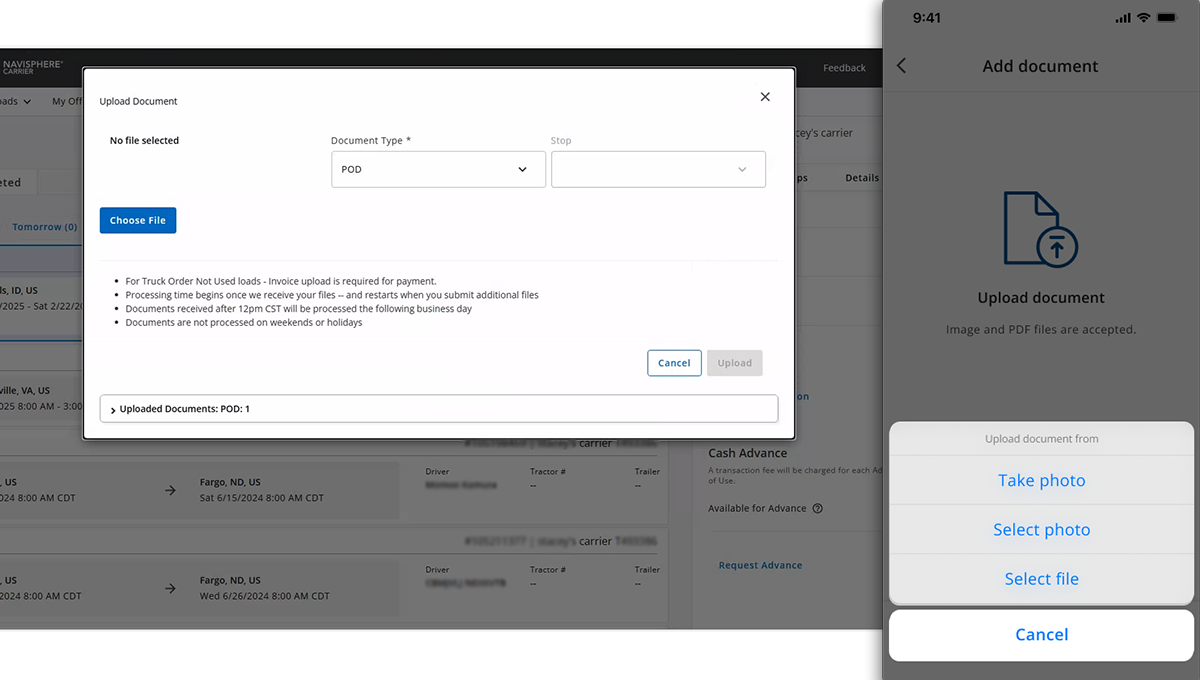
Step 3: Select your file
Select the type of document you’re uploading. Depending on the document type, you may also be able to attach it to a specific stop on the load. Make sure the document is complete, legible, and tied to the correct load.
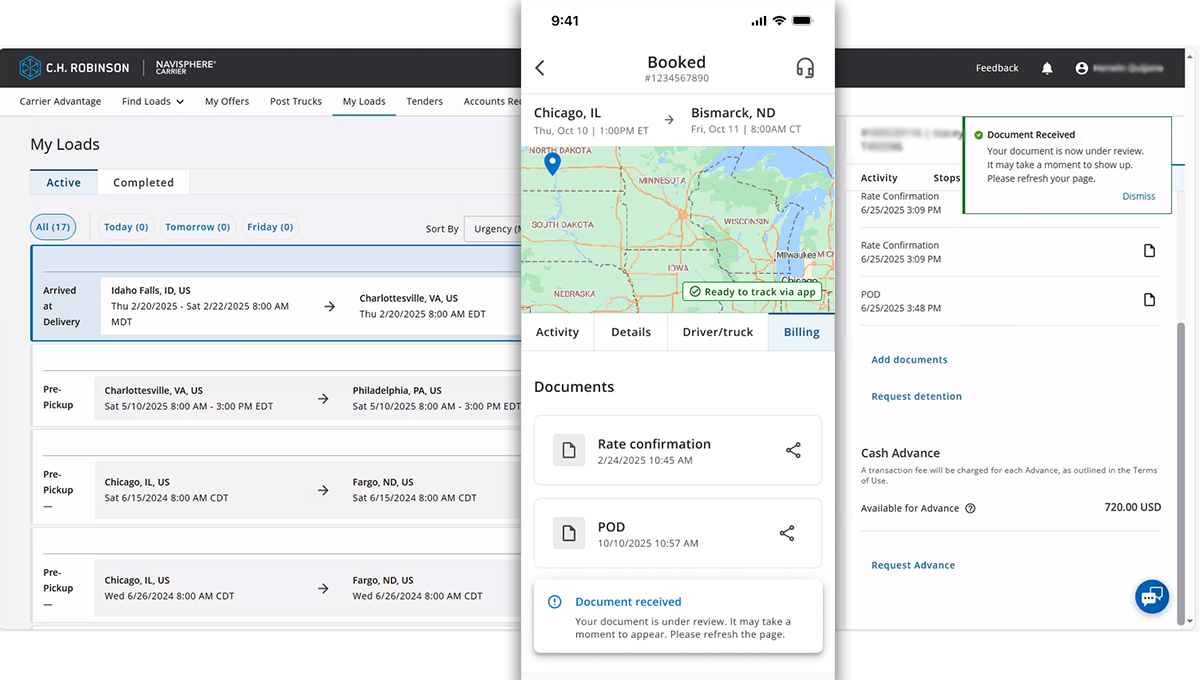
Step 4: Check for confirmation
After the upload is complete, you’ll see a confirmation message letting you know the document was successfully added to the load. It may take a moment for the document to appear in the details. You can upload additional documents if needed.
- Step 1
- Step 2
- Step 3
- Step 4